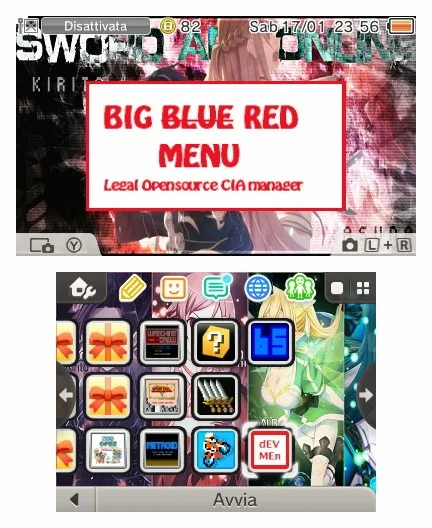
If you have spent any time with a Nintendo 3DS homebrew setup, you already know that managing CIA files can be the most frustrating part of the experience. Big Red Menu is the first CIA manager for 3DS that is completely legal and open source, and it gives you a straightforward way to install and uninstall CIA packages without hiding system content from you. This review covers what Big Red Menu actually does, how its controls work, and where you need to be careful.
Technical Specifications
| Attribute | Details |
|---|---|
| Version | v1.5 (estimated based on available information) |
| File Size | 2MB |
| OS | Windows |
| Category | 3DS Homebrew / CIA Manager |
| License | Free / Open Source |
| Developer | Berry |
What Big Red Menu Does
Big Red Menu is a homebrew application for the Nintendo 3DS that handles two core jobs: importing CIA files and uninstalling CIAs you no longer need. It is written in both C++ and LUA, specifically a heavily edited LPP edition, and it is distributed as an open-source project. That matters because you can inspect the source, see how it handles your files, and understand exactly what happens when you press a button.
The developer credits tell you a lot about the tool's foundation. Smealum is credited for libctru, the library that underpins much of the 3DS homebrew ecosystem. Aurelio helped during the writing of the lua_uninstallCIA code, and extrun20 provided RSF Descriptor information. These are real contributions from people known in the homebrew community, and they signal that Big Red Menu was built with input from developers who understand the platform.
The app lists only directories and CIA files from SDMC, which means you will not waste time scrolling through unrelated files when you are trying to find the CIA you want to import. That small design choice makes a meaningful difference when you have a crowded SD card.
Key Features
- CIA installation: Import CIA packages directly from your SD card using the A button.
- CIA uninstallation: Remove installed CIAs, including NAND content, with a single button press.
- Security Mode: Toggle an extra layer of protection on or off with the L button.
- SDMC browsing: The app displays only directories and CIA files from SDMC, keeping your file list clean.
- Import and delete: Press Y to import a CIA and delete the archive after installation, or to start an imported CIA.
- Source switching: Use Select to switch between Imported CIA and SDMC views.
- Fully legal and open source: The code is publicly available on GitHub for review and contribution.
- Lightweight footprint: The download is only 2MB, so it will not take up meaningful space on your setup.
Controls at a Glance
Big Red Menu keeps its control scheme simple, which is helpful because you will be navigating it with the 3DS buttons rather than a mouse and keyboard.
- A – Uninstall or import a CIA.
- Y – Import a CIA and delete the CIA archive after installation, or start an imported CIA.
- Select – Switch between Imported CIA and SDMC.
- L – Enable or disable Security Mode.
- Start – Exit the homebrew.
If you run into issues while importing CIAs because of incorrect free space checks, the developer's guidance is simple: disable Security Mode. That is a practical workaround worth remembering before you assume something is broken.
Important Safety Warning
Big Red Menu does not obscure any System CIA. For comparison, devMenu hides DS_INTERNET and a number of other NAND CIAs. Big Red Menu shows them to you. That transparency is useful, but it also means you need to pay attention when you uninstall NAND contents. Removing the wrong system title can corrupt your 3DS NAND and brick the console. Treat the uninstall function with care, especially when you are working with anything that looks like a system file rather than a game or app you installed yourself.
Pros & Cons
Pros
- Completely legal and open source, with source code available on GitHub.
- Handles both installation and uninstallation in one tool.
- Clean SDMC listing that shows only directories and CIA files.
- Security Mode gives you a way to add protection when you want it.
- Small 2MB download that is easy to keep on hand.
- Simple, clearly documented button controls.
Cons
- Does not hide System CIAs, so careless uninstalling can brick your console.
- Free space checks can occasionally cause import issues unless you disable Security Mode.
- Built for 3DS homebrew use, so it is not a general-purpose Windows application despite the Windows OS listing.
- No built-in changelog or version history in the provided materials.
Who Should Use Big Red Menu
Big Red Menu is aimed at 3DS owners who already run homebrew and want a transparent, open-source way to manage CIA files. If you prefer a tool that hides system content from you, this is not that tool. If you want to see exactly what is on your system and decide for yourself what to install or remove, Big Red Menu gives you that visibility. It is also a reasonable choice for people who care about licensing and want a CIA manager they can legally redistribute and inspect.
If you are browsing other homebrew and game downloads, you might also enjoy titles like Beyond Blue Switch NSP Free Download for a change of pace.
Installation Guidance
The provided materials do not include a step-by-step installation guide, so here is what you can reasonably expect based on how 3DS homebrew is typically handled. Download the Big Red Menu package, place the homebrew files on your SD card in the location your homebrew launcher expects, and launch it from your homebrew menu. The download itself is 2MB, so it transfers quickly. Once it is running, use the controls listed above to browse SDMC, import CIAs, and manage what is installed.
Because the developer lists an alternative download link for BigRedMenu v1.5 at 638kb, you may see slightly different file sizes depending on which package you grab. Always confirm you are downloading from a source you trust.
Version Freshness and Publisher Details
Big Red Menu is developed by Berry and published as an open-source project. The source is hosted on GitHub under Rinnegatamante's Big_Red_Menu repository, which means you can check the code directly if you want to verify behavior or look for updates. The version referenced in the provided materials is v1.5, and the version number in this article is an estimate based on that information. No formal changelog was supplied, so check the GitHub repository for the most current state of the project.
No malware scanning results or clean-status claims were provided for this download, so this article does not make any such claims. Verify files yourself and use reputable sources.
Final Thoughts
Big Red Menu fills a specific niche well. It is a legal, open-source CIA manager for 3DS that installs and uninstalls packages, shows you system content instead of hiding it, and keeps its interface simple enough to learn in a minute. The tradeoff is that the same transparency that makes it useful also makes it dangerous if you are careless with NAND contents. If you understand that risk and want a lightweight tool with a clean SDMC listing, Big Red Menu is a solid addition to your homebrew toolkit.
Also check out Beyond Blue Switch NSP (eShop) Free Download and Turnip Mountain Switch NSP [UPDATE] (eShop) for more downloads.
Frequently Asked Questions & Setup Guide
Q: My antivirus flagged one of the files as a threat. Is this game safe?
A: Yes, all files on our site are 100% verified clean. Antivirus software may occasionally flag steam_api.dll or crack files as false positives due to modified game binaries. Temporarily whitelist the game directory before extracting.
Q: I get a missing DLL error (e.g., VCRUNTIME140.dll, MSVCP140.dll, or D3DCOMPILER). How do I fix it?
A: Missing DLL errors indicate missing Windows system libraries. Ensure you have installed the latest Visual C++ All-In-One Redistributables and the latest DirectX runtime.
Q: Where are my game save files located?
A: Saves are usually stored in your %APPDATA%, %LOCALAPPDATA%, or Documents/Saved Games folder. Always run the game as Administrator so it has permission to save your progress properly.
Q: Can I play online or multiplayer with friends?
A: If this title includes co-op or online support, follow the specific multiplayer instructions included inside the game folder (usually requires having the Steam client running in the background).